 GDictate
Gmail dictation
Dictate emails in Gmail with GDictate
Speak your draft in Compose, polish it with AI, and click Send yourself.
Quick summary
- Click the mic next to Send (or press Alt+Z).
- Say punctuation out loud —
commabecomes,, not the word. - Say stop to end listening; never rely on saying “send”.
- Select text → Polish, then Structure if you want a clearer layout.
- Tune shortcut, silence timeout, and voice commands in Options.
Start dictation in Compose
- Open a Gmail compose or reply window.
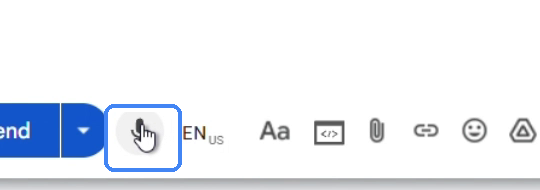
- Click the microphone next to Send (tooltip: Start dictation), or press Alt+Z.
Punctuation and voice commands
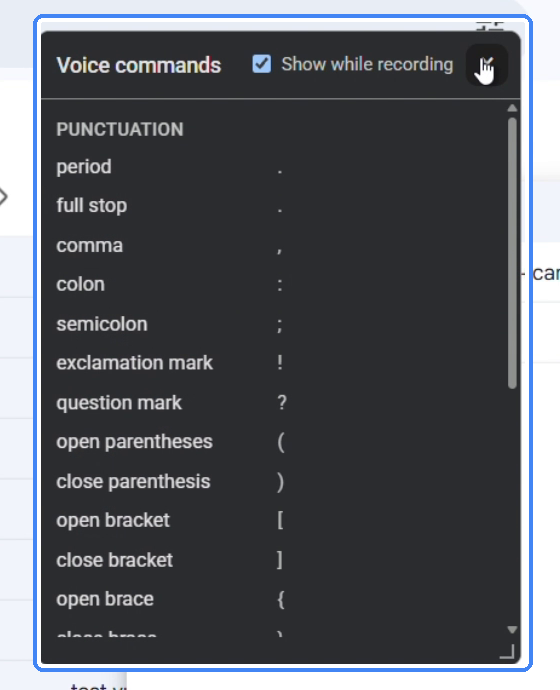
- While recording, the Voice commands sheet lists spoken phrases and the marks they insert.
- Speak naturally. Say new paragraph, thank you, comma, and so on.
- Say stop when you want listening to end.
Stop safely — you click Send
- A pause is only a pause — it does not insert a period.
- Stop ends listening. The word send is just a word.
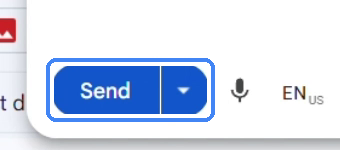
- GDictate never clicks Send for you. Click the blue Send button yourself.
Listening stays on while you edit
- Keep listening on, click a new caret position in the same draft, and keep talking.
- The next phrase lands where the caret is — you do not need to restart the mic.
Alt+Z and the command list
- Alt+Z starts and stops recording. Hold for push-to-talk (see Options for the exact hold pattern).
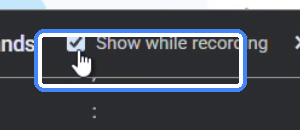
- Uncheck Show while recording if you do not want the command list every time you start.
Polish and Structure
- Select rough dictated text.
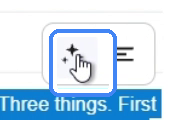
- Click Polish (sparkle) to clean filler and grammar while keeping your language.
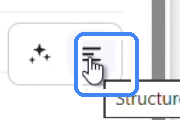
- Still messy? Click Structure to turn points into a clearer layout.
Options, rate, and install
| Setting | What it does |
|---|---|
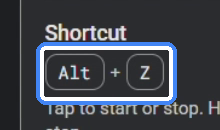
| Shortcut | Default Alt+Z — tap to toggle, or hold for push-to-talk |
| Stop after | Silence timeout (seconds) before listening ends |
| Highlight active text | Shades words while dictating or polishing |
| Countdown before recording | 3–2–1 on the mic before listening |
| Sound effects / volume | Soft start/stop tones |
| Voice commands | Built-in + custom phrases per language (60+ languages) |
| Replay Intro | Refreshes the in-product walkthrough |
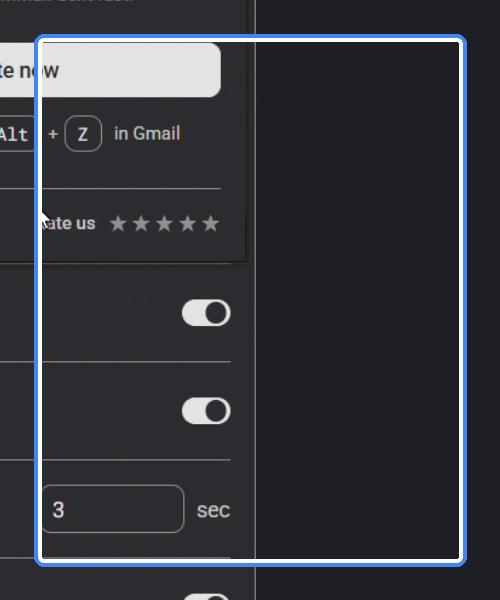
Rate the extension from the popup, or open Support if something is unclear.
Install from the Chrome Web Store: search Gmail dictation, then open Gmail Dictation - GDictate.
Checklist
- Mic visible next to Send in Compose
- Punctuation said out loud inserts marks
- Stop ends listening; you click Send
- Caret move + keep talking works without restarting
- Polish / Structure improve selected text
- Options shortcut and silence timeout set the way you like
FAQ
How do I start dictation in Gmail with GDictate?
Open Compose or a reply. Click the microphone next to Send (tooltip: Start dictation), or press Alt+Z.
If I say comma, does GDictate type the word comma?
No. Spoken punctuation becomes the mark. If you see the word on the page, you are not on GDictate.
Will saying send mail the email?
No. Stop ends listening. The word send is just a word. GDictate never clicks Send for you — you click the blue Send button yourself.
Do I need to restart the mic after moving the caret?
No. Keep listening on, click a new caret position in the same draft, and keep talking. The next phrase lands where the caret is.
What do Polish and Structure do?
Polish cleans filler and grammar while keeping your language. Structure turns points into a clearer layout. Select text first, then click the control.
Where do I change the shortcut and silence timeout?
In Options: default shortcut is Alt+Z (tap to toggle, or hold for push-to-talk). Stop after sets the silence timeout in seconds.